Timeboxing: how to finish one task in a fixed block of time
Pick one task, give it a fixed block of time, and stop when it ends. How to choose the length and breaks, where timeboxing breaks, and a free Mac timer.
If your days end with five things half done and nothing sent, timeboxing is a simple fix to try: pick one task, give it a fixed block of time, and work on only that task until the block ends. Then stop, whether it’s finished or not, and decide what happens next. This guide is for anyone whose day ends with many things half done; it shows how to choose the task, the length, and the breaks, and what to do when time is up.
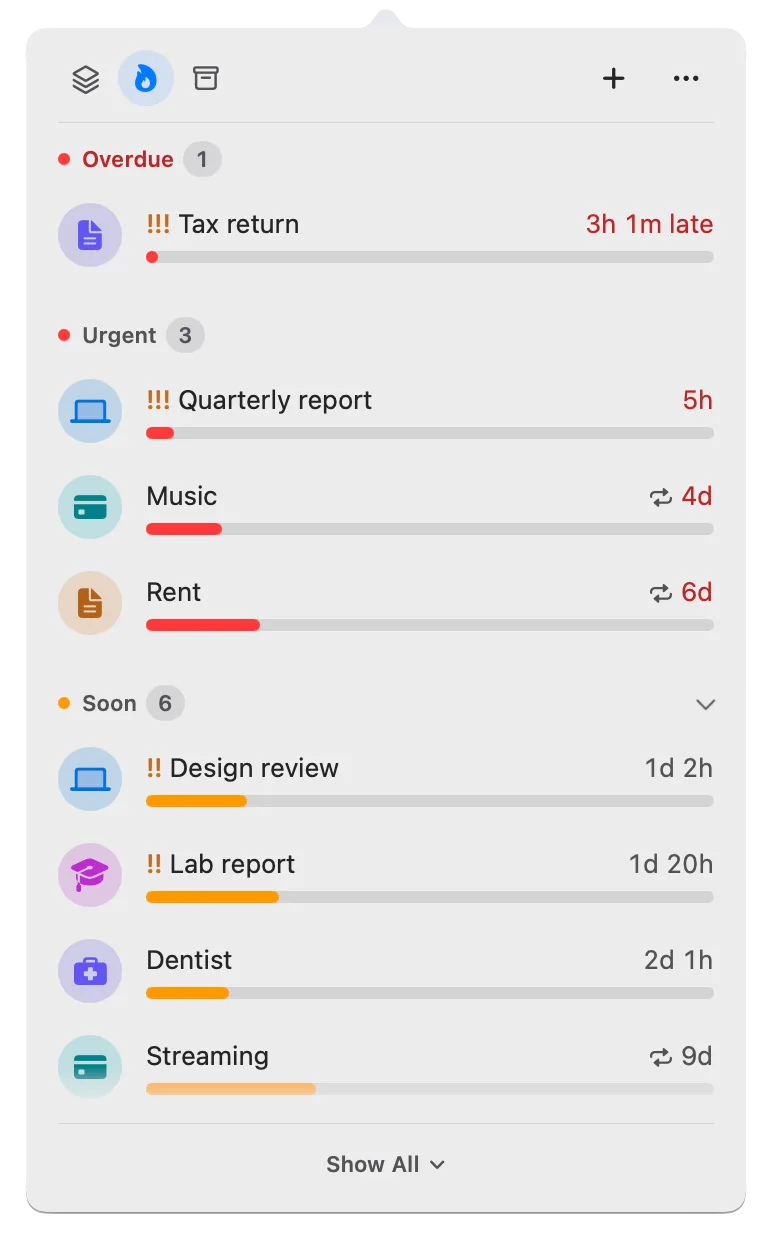
Deadline Bar is a Mac app that shows your most urgent deadline in the menu bar at the top of your screen and lists the rest in a panel, most urgent first, which helps with the first choice: which task gets the box. The method works with any timer or calendar, and Deadline Bar’s Focus sessions (a timer tied to one deadline) can time the box for you.
A timebox is a promise about time
A timebox is a promise about time, not about results: “I’ll work on the client report from 9:00 to 10:00, and on nothing else.”
A to-do list says what to do but rarely when you’ll do it, so every item competes for every free minute. A timebox answers both questions at once. The task gets the time, and everything else waits for its own turn.
Why a fixed box helps
A fixed end changes three things about how you work. Each follows from the box itself, not from willpower.
Starting gets easier. “Write the report” has no edge; you can’t see where it ends, so it’s easy to put off. “Work on the report until 10:00” has an edge. You aren’t committing to finish, only to spend an hour, and an hour is something you can picture.
You switch less. Inside the box, the question “what should I do now?” is already answered. When a message arrives or another task comes to mind, the answer is already “after 10:00,” so you don’t have to decide again.
Scope fits the time. With an open end, work expands: one more pass, one more option. With a fixed end, you look for the version that fits the hour. Sometimes that’s a draft, sometimes an outline, sometimes the part a client is waiting for. Either way, you finish something you can send.
Here’s an example. Say Thursday holds a client report, two emails to answer, and a bug to look at. Without boxes, the morning goes to the emails and the bug because they’re quick, and you start the report after lunch, tired. With one box, 9:00 to 10:00 belongs to the report, and the quick things fill the gaps around it.
How to timebox one task
1. Choose the task the night before
Pick the task that has used the most of the time it was given, not just the one due soonest. If two are equally close, pick the one with more riding on it: a client waiting, a penalty for being late. The priorities guide walks through that choice. Deciding the night before means the box starts with work, not with choosing.
2. Choose a length that fits the task and your day
There’s no single right length. Choose by how long the task takes to get going, and how much protected time your day really has.
| Length | Fits when |
|---|---|
| 25 minutes | You’re starting something you’ve been avoiding, the day is full of meetings, or the task is small and clear. |
| 50 minutes to 1 hour | Most single tasks: a section of a document, a review, a batch of emails, one bug. |
| 90 minutes | Work that takes a while to load back into your head, such as writing, design, or code, on a day with a free morning. |
| 2 hours | Deep work you can protect from interruptions, with a break in the middle. |
If you don’t know, start with an hour. After a week, look back: if you often stopped right as the work got going, try longer boxes; if you often drifted before the end, try shorter ones.
Then check your capacity. Look at tomorrow’s calendar, count the free stretches long enough for the length you chose, and plan no more boxes than that. Two boxes that happen beat four that get pushed aside by meetings.
3. Decide where the breaks go
For a box longer than an hour, plan a break inside it, not after it. The break is part of the box, so the box still ends when your calendar says it does, and the next block isn’t pushed back. A two-hour box with a 15-minute break after each hour of work runs like this:
| Time | Part |
|---|---|
| 9:00–10:00 | Work, 60 minutes |
| 10:00–10:15 | Break, 15 minutes |
| 10:15–11:00 | Work, 45 minutes |
That’s 105 minutes of work in two hours, and the box still ends at 11:00. Take the break away from the screen: stand up, drink water, look at something far away.
4. Put the box on your calendar
Block the time with the task’s name (“Client report”), not “Focus time.” A named block tells you what to open when it starts, and tells anyone who reads your calendar that the time is taken.
The calendar and a timer do different jobs. The calendar reserves the time in advance; a timer keeps you to it while you work, and tells you when to stop. Use both.
5. Close everything that isn’t the task
Quit or hide mail and chat for the length of the box, close the other tabs, and turn on Do Not Disturb in Control Center if notifications pull you away. When something comes to mind, write one line on paper or in a note and go back. You’ll deal with it after.
6. Stop when the box ends, and decide
When time is up, stop and choose one of three outcomes:
- Done. Send it, mark it done, and move on.
- Not done, but clearer. Write the very next step (“draft section 3,” “ask for the logo files”) and give it another box, today or tomorrow.
- Blocked. Name what’s missing, and ask for it now, before the next box.
This step matters most. A box that stretches whenever the task runs long is a to-do with a start time; the fixed end is what makes the method work.
Where timeboxing breaks
Timeboxing assumes you control at least part of your day. It struggles in a few situations:
- Days of back-to-back meetings. Box what’s left anyway. Thirty minutes on one thing moves it forward; three hours of switching rarely does.
- Roles that are interrupt-driven. If answering quickly is the job (support, on-call), keep boxes short and plan for them to be broken.
- Tasks that are too big. If a task never fits a box, it’s several tasks. Split it into parts you could finish in one sitting.
- Tasks that are unclear. If you don’t know what done looks like, the first box should be spent finding out: read the brief, list questions, ask the client.
Doing it in Deadline Bar
Deadline Bar helps with step 1. Its panel (the list that opens when you click the menu bar item) puts the most urgent deadline at the top: by section first (Overdue, Urgent, Soon, Later, set by each deadline’s share of time left), then by priority, then by the nearest due date. You can pick tomorrow’s task in a glance. The colors guide explains how that share is measured.
Start Focus… on a deadline times the box for you. Set Focus for to 25 min, 50 min, 1 hour, or Until Due, and click Start Focus. The breaks sit inside the session (a 10-minute break after each 50 minutes of work, by default) while the menu bar counts down. Deadline Bar Pro, the paid upgrade, adds 2 hours and Custom… for a length of your own, such as the 90 minutes above, and lets you choose the breaks, such as 15 minutes after each hour. The getting started guide shows where Focus is and how to add your first deadline.
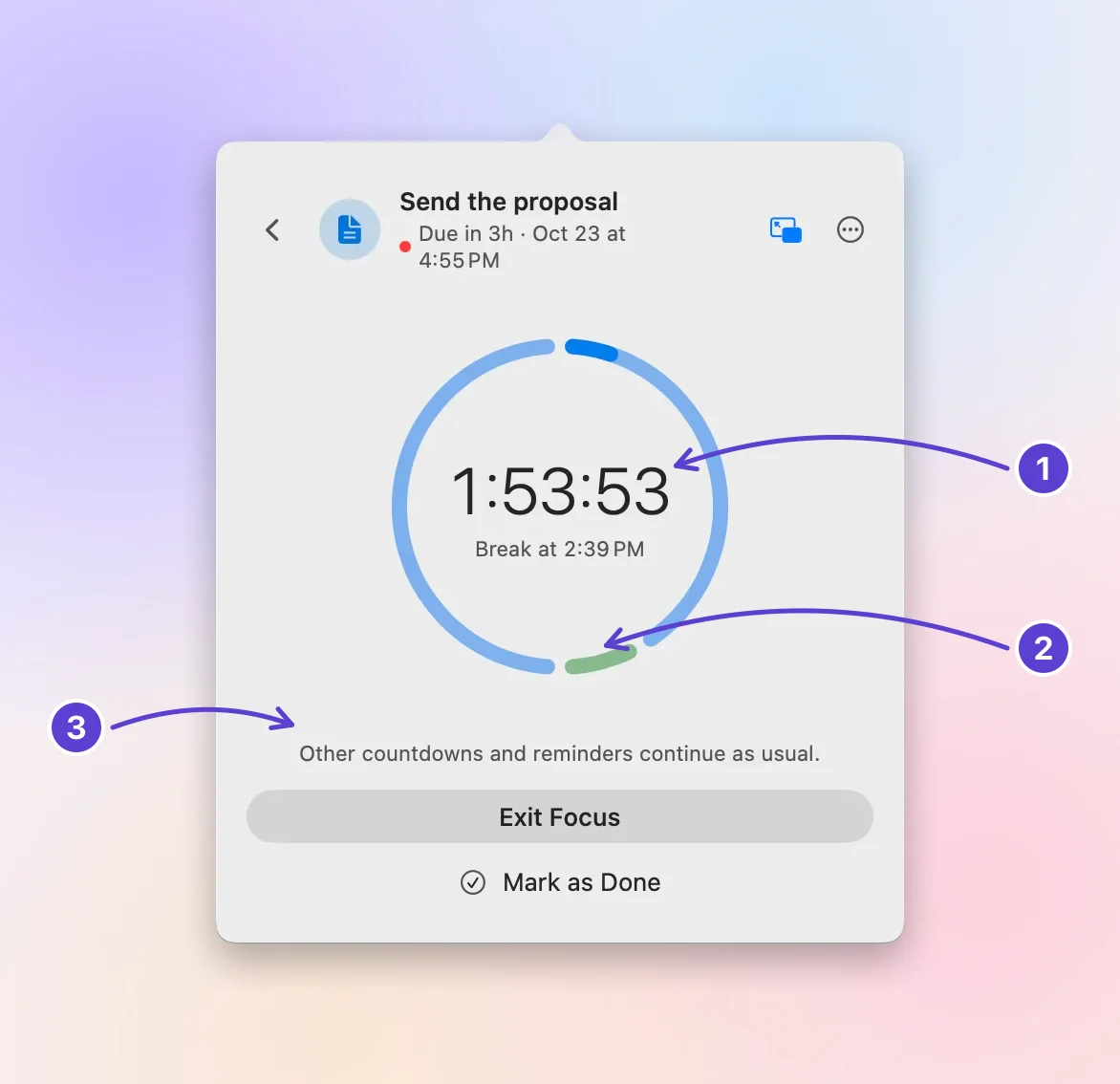
- Time left in the session
- When the break comes
- Other deadlines keep counting
Next step
Tonight, choose one task for tomorrow and block one box for it on your calendar, an hour if you’re unsure. Read the priorities guide if two tasks seem equally urgent.
Questions
Is timeboxing the same as the Pomodoro Technique?
They’re related. The Pomodoro Technique usually works in 25-minute intervals with short breaks between them. Timeboxing lets you choose the length to fit the task, and the box is about one task, not a count of intervals.
What if I finish early?
Stop and send it. Use the rest of the box for the next small thing on the same task, such as a final check, or let it go and start the next box early.
What if I never finish inside the box?
That’s normal for large work. End each box with the next step written down, so the following box starts at once. If a task needs many boxes, split it into smaller deadlines.
Timeboxing vs time blocking: what’s the difference?
Time blocking plans your day: you divide the calendar into blocks and give each a kind of work, such as email at 9:00 and writing at 10:00. Timeboxing limits one task: it gets a fixed amount of time, and when the time ends you stop and decide, finished or not. The two work well together. A block reserves the hours, and a timebox inside it keeps one task from taking all of them.
Trademarks belong to their owners; Deadline Bar isn’t affiliated with them.
Pick one deadline and give it a box
See your deadlines in your Mac’s menu bar, colored green to red as time runs out, and choose what to do next.

Read next
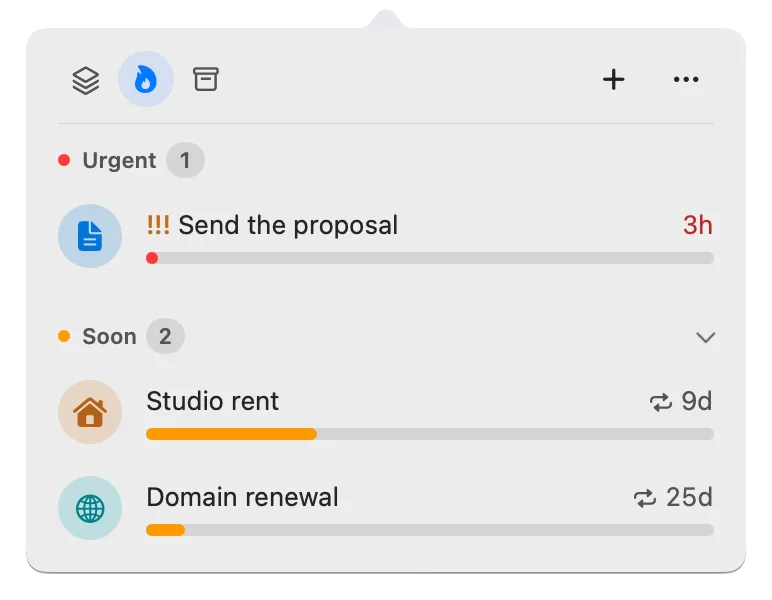
How to prioritize competing deadlines: what to do first
When several deadlines compete, sort them by how much of their time is left, then by what a slip would cost. A worked example, and how to do it on your Mac.